In short: Every device has to be joined to your controller before it will do anything, and it can only belong to one Z-Wave or Zigbee network at a time. Most "it won't join" problems come from a device that still belongs to another network. Remove or reset it first, then add it.
Who this guide is for
- You're adding your first devices and want to do it in the right order.
- A device won't join, has dropped off or shows as "failed".
- You're moving a device to a different controller, or passing it on to someone else.
Inclusion, pairing, commissioning: the words used
Each technology has its own word for the same job. Your controller's app may use any of them.
Z-Wave
- Add: inclusion
- Remove: exclusion
- Security: S2 key, as a QR code and PIN
- One network at a time
Zigbee
- Add: pairing or joining
- Remove: delete in the app, or reset the device
- Security: automatic. A few devices use an install code
- One network at a time
Matter
- Add: commissioning
- Remove: delete in the app, or reset the device
- Security: QR code or 11-digit setup code
- Can be shared with several systems
The right order: mains devices first
Z-Wave and Zigbee are mesh networks. Mains-powered devices pass messages on for others. Battery devices do not. The order you add things in decides how good the mesh is.
- Place the controllerPut it where it will live: central, off the floor, away from the Wi-Fi router and metal cabinets.
- Add mains-powered devicesPlugs, in-wall modules and wall switches. Start with the ones nearest the controller and work outwards.
- Add battery devices lastSensors and remotes. Add them in or near their final position so they find the best route.
- Name and test as you goGive each device a clear name and room, and check it responds before moving on.
 Smart plugsMains powered. Add early
 In-wall modulesMains powered. Add early
 Motion sensorsBattery powered. Add last
 Door sensorsBattery powered. Add last
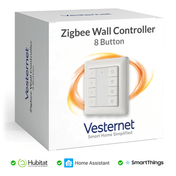
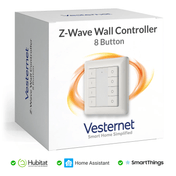
 Wall controllersBattery powered. Add last
In-wall modules and wall switches are mains wiring. They must be fitted by a competent person, and the work must comply with local regulations. Why the mesh matters is covered in Building a reliable network.
Z-Wave: adding and removing devices
What is inclusion mode?
Inclusion mode is a short window, usually under a minute, in which the controller listens for a new device. You start it in the controller's app ("add device"), then press the button on the device. The manual says how: often one press or three quick presses. The controller gives the device a number on the network and asks it what it can do. That second part is called the interview. Wait for it to finish.
Exclusion: any controller can do it
A Z-Wave device remembers the network it belongs to and ignores every other one. Exclusion tells it to forget. Start exclusion in the app ("remove device"), then press the device's button in the same way as for inclusion.
The useful part: any Z-Wave controller can exclude any Z-Wave device, even one it has never seen. If you bought a used device, or the old hub has gone, run exclusion from your new controller first and then include it.
S2 keys, QR codes and SmartStart
Current Z-Wave devices use S2 security. Each device has its own key, printed as a QR code and as a long number on the device, the box or a card in the box.
- Button inclusion with S2. The controller asks for a PIN. It is the first five digits of the key, usually underlined.
- SmartStart. Scan the QR code in the controller's app first, then power the device on. It joins by itself, usually within a few minutes, sometimes up to ten. No button presses.
- Keep the codes. Photograph every QR code and note which device it belongs to. Once a module is behind a switch, the label is out of reach. You need the code again if you move the device to another controller.
If you skip the PIN, most controllers add the device without S2. It will work, but locks and other security devices should always be added with it. More on S2 is in our Z-Wave guide.
Factory reset: when exclusion is not enough
Exclusion is meant to return a device to its factory settings. It doesn't always. Some devices keep old settings after being excluded, which can cause odd behaviour on the next controller.
If an excluded device misbehaves after being added again, do a full factory reset using the button sequence in its manual, then include it. Use the reset on its own only as a last resort, for the reason below.
Failed nodes
If a device is reset, breaks or is thrown away without being excluded, the controller still has it on its list. This is a failed node, sometimes called a ghost. The controller keeps trying to reach it and to route through it, which slows the network down.
Controllers have a "remove failed device" or "force remove" option for this. Use it whenever a device is gone for good. If a device has failed and you're fitting an identical one, some controllers offer "replace failed device", which gives the new one the old one's place so automations carry on.
Changing a battery? You do not need to exclude and include the device again. Swap the battery and give it a couple of minutes to start reporting. Take care not to hold the button down while you do it. On some devices that is the reset sequence.
Zigbee: pairing, resetting and re-pairing
The Zigbee pairing process
The controller opens the network for joining ("add device" or "permit join"), usually for a minute or so. A device in pairing mode looks for an open network, joins it, and is then interviewed in the same way as a Z-Wave device.
- A brand new device normally goes into pairing mode the first time it is powered.
- For any other device, pairing mode means resetting it. This is usually a long press on its button, or switching a bulb on and off several times. The manual gives the sequence.
- There is no separate "exclude" step. Deleting a device in the app tells it to leave. If the old hub has gone, reset the device and it is ready to pair.
- A few Zigbee devices have an install code, printed as a QR code. If your controller asks for one, scan or type it before pairing.
Re-pairing in place
Zigbee devices sometimes drop off, most often battery sensors after a flat battery or a router being unplugged. The fix is quick, and you should not delete the device first.
Every Zigbee device has a fixed address. When it rejoins, most controllers match that address to the existing entry, so the name, room and automations stay as they were. If you delete it first, you have to rebuild all of that.
More on Zigbee routers and range is in our Zigbee guide.
Matter: setup codes and sharing
A Matter device is added by scanning its QR code, or typing the 11-digit setup code printed beside it, in your controller's phone app. The phone usually finds the device over Bluetooth and passes it your network details. Devices that use Thread also need a Thread border router, which many current hubs include.
Unlike Z-Wave and Zigbee, one Matter device can be controlled by several systems at once. To add it to a second one:
- In the first system's app, find the device's settings and choose the option to share it, turn on pairing mode or "add to another app". The wording varies.
- The app shows a new code. Enter it in the second system within a few minutes.
- Removing the device from one system does not remove it from the others.
- A factory reset removes it from all of them. After that the original QR code works again.
Keep the Matter code with your Z-Wave QR codes. It is often printed only on the device and the manual.
Troubleshooting
| What you see | Likely cause | What to do |
|---|---|---|
| Z-Wave device won't include | It still belongs to another network | Run exclusion on it, then include again |
| Still won't include after exclusion | Too far from the controller, or the wrong region | Try it close to the controller. Check it is an 868 MHz device for the UK and Europe |
| Included, but no controls or readings | The interview did not finish | Wake a battery device with its button and let the controller retry. If needed, exclude and include it again nearby |
| S2 inclusion fails | Wrong PIN, or it took too long | Exclude, then try again with the first five digits of the key ready |
| Zigbee device isn't found | It is not in pairing mode, or still on another hub | Reset it with the sequence in the manual, with the network open |
| Zigbee sensor keeps dropping off | No router within easy reach | Add a mains-powered device nearby, then re-pair the sensor in place |
| A removed device still shows in the app | It was reset or unplugged without being excluded | Use "remove failed device" |
| Matter code is rejected | The device is already set up in another system | Share it from that system, or factory reset the device |
| Stopped working after a battery change | It was reset by accident | Wait a few minutes first. If it stays silent, add it again |
After adding or moving several Z-Wave devices, give the network a few hours to settle. If a device is still slow, run your controller's route rebuild for that device, if it has one. Zigbee sorts its own routes over the next day or so.
Common questions
Do I have to exclude a device before selling it or passing it on?
It is kind to. If you forget, the new owner can exclude it from their own controller, or reset it.
Can one device be on two hubs?
Not with Z-Wave or Zigbee. A Matter device can be shared with several systems.
Where are the exact button presses for my device?
In its manual. Each controller's own steps are in our getting started guides for Hubitat, Homey Pro, Home Assistant and the Aeotec Smart Home Hub (SmartThings), listed on the guides page. For Fibaro Home Center, see Fibaro's own manual. To choose a controller, see Choosing a smart home controller.
What you'll need
- Smart home controllers
- Smart plugs and in-wall modules to build the mesh first
- Sensors