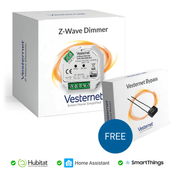
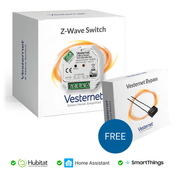
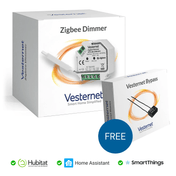
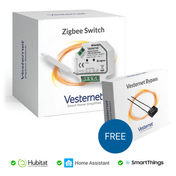
In short: Home Assistant is free software that runs on your own small computer. To control Z-Wave devices it needs a US-frequency (908.42 MHz) Z-Wave adapter, unless the box it runs on has one built in. The Horus Nexxo 800 has one built in. Z-Wave devices are added through Z-Wave JS, and every device in our US range uses the US frequency.
Who this guide is for
- You have Home Assistant running, or are about to, and want to add Z-Wave devices.
- You are choosing between a USB Z-Wave adapter and a box with Z-Wave built in.
- You also want to know how Zigbee works in Home Assistant.
What you need
Home Assistant is software, not a box with radios inside. Most of the hardware it runs on has no Z-Wave radio, so you add one. There are two ways to do it.
- A machine running Home AssistantA dedicated Home Assistant box, a Raspberry Pi or a small PC. It stays on all the time. Home Assistant OS is the simplest way to install it.
- A US-frequency Z-Wave adapterA USB stick such as the Aeotec Z-Stick 7 (US). You can skip this if your box has Z-Wave built in, as the Horus Nexxo 800 does.
- A USB extension lead for the stickA short USB 2.0 lead moves the stick away from the computer. Interference from the computer is the most common cause of poor range.
For Z-Wave, the adapter must be made for the US (908.42 MHz). US devices only pair with a US-frequency hub or adapter. EU and UK devices use 868 MHz and will not pair with a US adapter. Zigbee uses the same frequency worldwide, so it has no region to match.
 Aeotec Z-Stick 7 (US)Adds a 908.42 MHz Z-Wave radio over USB
 Horus Nexxo 800Runs Home Assistant with Z-Wave built in
 In-wall dimmersMains powered, so they also build the mesh
 SensorsBattery powered. Add these last
 Smart locksAdded with S2 security
 ThermostatsHeating and cooling in your automations
Home Assistant changes every month and menus move. If your menus look different, search the Home Assistant settings for "Z-Wave" or "Zigbee". Recent versions call add-ons "apps".
How to set up Z-Wave JS in Home Assistant
Z-Wave JS is the software that runs your Z-Wave adapter. In Home Assistant the integration is simply called Z-Wave.
- Connect the adapterPlug the stick in on its extension lead. On Home Assistant OS the stick is detected and you are offered a recommended installation. Accept it. On a box with Z-Wave built in, such as the Nexxo 800, there is no stick to plug in. Follow the set-up steps in its quick start guide.
- Check the regionThe radio region follows your Home Assistant location by default. In the US, leave it set to USA.
- Save the security keysHome Assistant creates the network keys for you. Copy them somewhere safe. You need them if you ever rebuild the system.
Adding a Z-Wave device
Adding a Z-Wave device is called inclusion. There are two ways to do it.
SmartStart (QR code)
- Leave the device switched off.
- Go to Settings, Connectivity, Z-Wave and choose Add device, then Scan QR code.
- Scan the code on the device or its box.
- Power the device on. It joins by itself, usually within a few minutes, sometimes up to ten.
Classic inclusion (button)
- Choose Add device. The adapter starts listening.
- Press the button on the device as its manual describes (often once or three times).
- If asked for a PIN, type the five digits printed with the QR code.
- Wait for the interview to finish before using the device.
A few points that save time:
- S2 security. Home Assistant uses S2 whenever the device supports it. The PIN is the first five digits of the device's key. Keep the QR code or the key for every device. Locks need S2 or S0 security to work.
- Used devices. A device that has been on another network must be excluded first. In the Z-Wave settings, open the options and use "Remove foreign device". Any Z-Wave controller can exclude any device.
- Battery devices. They sleep. Keep the device awake during the interview by pressing its button every few seconds.
- Keep it up to date. Update Home Assistant and the adapter's firmware. A very old installation may not know a newer device.
ZHA or Zigbee2MQTT: which should I use?
Home Assistant has two well-supported ways to run Zigbee. You need a Zigbee radio, either a USB stick or one built into your box. The Nexxo 800 has a Zigbee radio as well as Z-Wave. Pick one system. A Zigbee radio can only be used by one of them at a time.
| ZHA | Zigbee2MQTT | |
|---|---|---|
| What it is | The Zigbee integration built into Home Assistant | A separate open-source project that runs as an app beside Home Assistant |
| Set-up | Connect the radio and follow the prompts | Install an MQTT broker and the Zigbee2MQTT app, then link them |
| Device support | Standard Zigbee devices work without extra files. Unusual devices need a "quirk" | A very large published list of supported devices, each with its own page |
| Best for | A first Zigbee network and anyone who wants the fewest moving parts | People who want more detail, more settings and their own dashboard for the Zigbee network |
If you are new to Home Assistant, start with ZHA. You can move later, but every device has to be paired again, so it is worth choosing before the network grows.
How to add Zigbee devices to Home Assistant
Adding a Zigbee device is called pairing. The steps are nearly the same in both systems.
With ZHA
- Go to Settings, Connectivity, Zigbee.
- Choose Add device.
- Put the device into pairing mode. For most devices that means resetting it as the manual describes.
- The device appears within a few seconds. Give it a name and a room.
With Zigbee2MQTT
- Open the Zigbee2MQTT page.
- Press Permit join. The network stays open for about four minutes.
- Put the device into pairing mode.
- Wait for the "successfully interviewed" message, then rename the device.
- Add mains-powered devices first, starting near the controller and working outwards. They become the routers that battery devices connect through. This applies to Z-Wave too.
- A device that was paired to another hub must be reset before it will join.
- Pair battery sensors close to where they will be used, so they pick a sensible router.
- Keep Zigbee radios away from Wi-Fi routers and USB 3 ports. Both can drown out Zigbee.
More on how the mesh forms is in our Zigbee guide.
Which US devices work with Home Assistant?
Every device in our US range is a US-frequency (908.42 MHz) Z-Wave device. Z-Wave JS supports standard Z-Wave devices from all makers, and it has a large database of device files.
- Switches and dimmers. In-wall switches, dimmers, outlets and fan controls from Leviton, Enbrighten, JascoPro and Shelly Wave.
- Sensors. Door, motion, leak and multi-sensors from Aeotec, Ecolink and Shelly.
- Locks and climate. Yale, Kwikset and Alfred locks, and thermostats from Honeywell Home, 2GIG and Horus Automation.
Every device in our US range that works with Home Assistant is in Works with Home Assistant.
USB stick or a box with Z-Wave built in?
| Option | What it is | Best for |
|---|---|---|
| Aeotec Z-Stick 7 (US) | A USB Z-Wave adapter, 700 series, with S2 and SmartStart | Adding Z-Wave to a Home Assistant box, Raspberry Pi or PC you already have |
| Horus Nexxo 800 | A controller that runs Home Assistant, with Z-Wave 800 series, Zigbee 3.0, Wi-Fi and Bluetooth radios built in | Starting from scratch with one box and no USB sticks |
| Another controller | A ready-made hub such as SmartThings, Hubitat or Homey | See all US controllers |
In-wall switches, dimmers and outlets are mains wiring. The work must be done by a qualified electrician and comply with local codes. Read the manual before the device goes in the wall.
Back up before you go further
Home Assistant holds your devices, names and automations. The Z-Wave adapter and the Zigbee radio hold the networks themselves. Protect both.
- Home Assistant backups. Turn on automatic backups in Settings, System, Backups, and keep copies somewhere other than the machine itself. Store the backup encryption key safely.
- Z-Wave. The Z-Wave settings page can download a backup of the adapter's memory, which includes every paired device. Keep it with your security keys.
- Zigbee. ZHA backs up the Zigbee network automatically, and it is included in the Home Assistant backup. Zigbee2MQTT keeps its own data folder, which is saved with the app.
With these, a failed adapter can be replaced without pairing everything again. The Z-Wave settings page and ZHA each have a "migrate" option for moving to a new adapter. Zigbee2MQTT has its own procedure. A replacement Z-Wave adapter must also be a US-frequency model.
Your first automation
An automation in Home Assistant has three parts: a trigger (when), optional conditions (and if) and actions (then do).
- WhenA motion sensor in the hall detects movement.
- And ifThe sun has set.
- Then doTurn the hall dimmer on at 40%, wait three minutes, then turn it off.
Go to Settings, Automations and scenes, and choose Create automation. Pick the sensor as the trigger and the dimmer as the action, then save and walk past the sensor. Start with one room and get it right before copying it to the next.
Common questions
Will UK or European Z-Wave devices work with a US adapter?
No. They use 868 MHz and will not pair. US devices only pair with a US-frequency hub or adapter. Every device in our US range uses 908.42 MHz.
Can I run Z-Wave and Zigbee at the same time?
Yes. Each has its own radio and its own network, and devices from both can be used in the same automation.
Do I need the internet?
No. Z-Wave and Zigbee devices are controlled locally. The internet is used for updates and for remote access.
Is Home Assistant right for me?
It is the most flexible controller and also the one that asks most of you. If you would prefer a ready-made hub, see Works with SmartThings, Works with Hubitat or Works with Homey.