In short: Moving to a newer hub of the same brand is usually a guided transfer that keeps your devices joined. Moving to a different brand means adding every device again and rebuilding your automations. If you are changing brand, do it a room at a time, with the old hub still running. Either way, check the new hub has the radios your devices need before you start.
Who this guide is for
- Your hub is old, slow or no longer supported and you're ready to replace it.
- You want Matter or Thread and your current hub doesn't have them.
- You're changing brand and want to know how much work it is.
Why move to a new hub?
- Support has ended. The maker has stopped updating the hub or its app, or has closed the cloud service it relied on.
- Newer radios. Current hubs add Matter and Thread, and many have newer Z-Wave and Zigbee chips with better range. If you want Z-Wave Long Range, check with the maker that the hub supports it in the UK and Europe. For Hubitat, check with Hubitat.
- Speed and local control. Newer hubs run more of your automations in the house, so they are faster and keep working when the internet is down.
- You have outgrown it. More devices, or automations the old hub can't express.
If the hub you have does everything you need and is still supported, there is no need to change it.
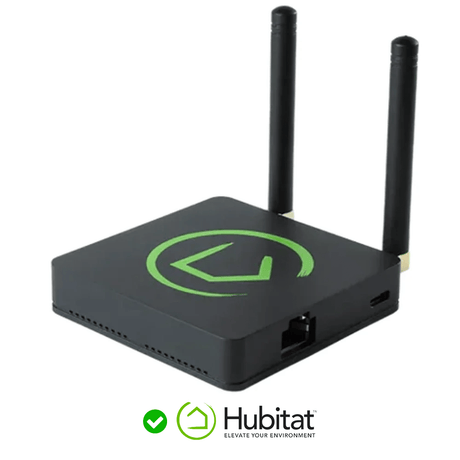
 Hubitat ElevationLocal automations, Z-Wave, Zigbee and Matter
 Homey ProMany radios in one hub, app-led set-up
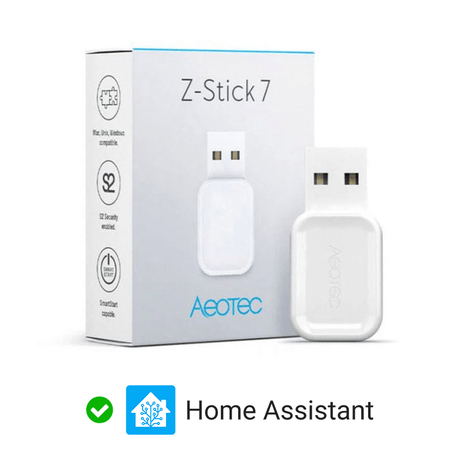
 Home AssistantYour own computer plus USB sticks
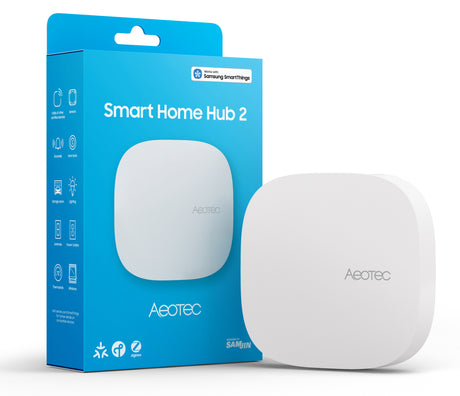
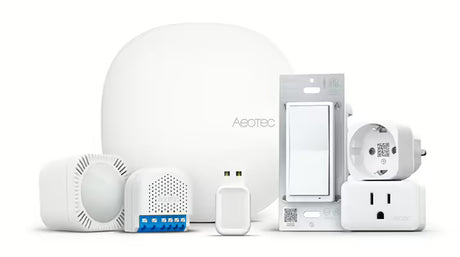
 Aeotec Smart Home HubRuns SmartThings. Check which radios it has
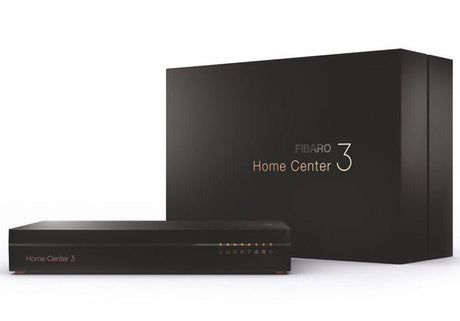
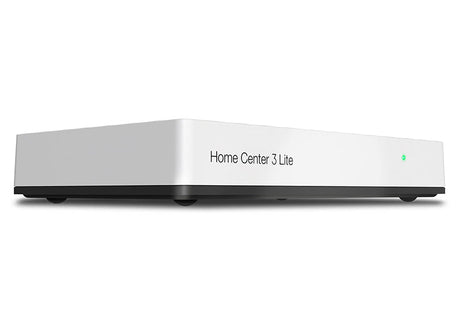
 Fibaro Home CenterInstaller-grade Z-Wave controller
For help choosing, see Choosing a smart home controller.
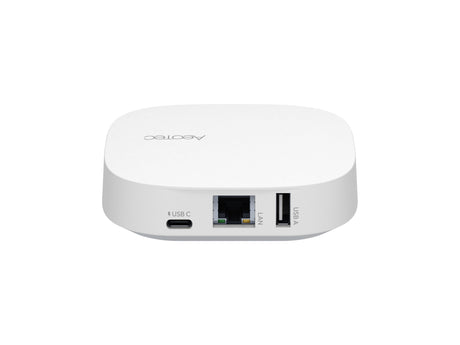
Check the radios first. The newest Aeotec Smart Home Hub has Zigbee, Thread and Matter but no Z-Wave. The earlier Aeotec Smart Home Hub does have Z-Wave. If you own Z-Wave devices, make sure the hub you are moving to has a Z-Wave radio for the UK and Europe (868 MHz). Radios change between models, so check the product page.
What moves across and what doesn't
It depends on one question: is the new hub the same brand as the old one?
| Same brand, with its migration tool | Different brand | |
|---|---|---|
| Z-Wave and Zigbee devices | Usually stay joined. A few may need waking or repairing | Each one is removed and added again |
| Device names and rooms | Carried over | Typed in again |
| Automations and scenes | Usually carried over. Check each brand below | Rebuilt by hand |
| Device settings | Carried over | Set again. Note them down first |
| Matter devices | Depends on the brand | Shared to the new hub, or reset and added again |
| Voice assistants and cloud links | Sign in again | Set up again |
| History and energy data | Sometimes | No |
Nothing converts one brand's automations into another's. See that as a chance to drop the ones nobody uses.
Same brand: what each migration tool does
Each platform has its own way of moving to a newer hub. These notes reflect what each maker documented in November 2026. Read the maker's current instructions before you begin, because the steps and the supported models change.
| Platform | What it offers | Watch for |
|---|---|---|
| Hubitat Elevation | A cloud backup of the old hub, including its Z-Wave and Zigbee radio data, restored to the new hub. Devices stay joined | The migration tool is free when moving up from an older model to a newer one. Regular cloud backups are part of a paid service. For a like-for-like swap, check Hubitat's migration guide. Switch the old hub off before restoring |
| Homey Pro | Back up the old Homey Pro, switch it off, then restore the backup on the new one. Apps are installed again automatically | Some Zigbee devices need the "repair" option afterwards. Sign in again to linked services. The cloud-based Homey cannot be migrated to Homey Pro |
| Aeotec Smart Home Hub (SmartThings) | "Replace Hub" in the SmartThings app moves devices from one hub to another | The new hub must be empty. The old hub is factory reset. Z-Wave devices will not carry over to a hub with no Z-Wave radio, and the current Aeotec Smart Home Hub has none. Do not use Replace Hub to move from a Z-Wave hub to it if you rely on Z-Wave devices |
| Fibaro Home Center | Fibaro offers a transfer tool for moving from Home Center 2 or Home Center Lite to Home Center 3 | Follow Fibaro's own instructions. Check before you start what is carried over and whether the transfer can be undone |
| Home Assistant | Restore a full backup on the new machine. To change a USB stick, Z-Wave and ZHA each have a "migrate" option. Zigbee2MQTT has its own procedure | Take the Z-Wave stick backup and note the security keys first |
Two rules apply to all of them. Take a fresh backup of the old hub before you start. And never run the old and new hub together after a transfer: two hubs with the same network details will fight over the devices.
Changing brand: moving devices one at a time
A Z-Wave or Zigbee device belongs to one hub. To move it, you take it off the old one and add it to the new one. The steps are short, but there are a lot of devices.
Z-Wave
- Exclude the device from the old hub.
- Include it on the new hub, using its S2 QR code or PIN.
- If the old hub is dead, the new hub can run the exclusion.
- Give the new mesh a few hours to settle when a room is done.
Zigbee
- Delete the device from the old hub, or reset it.
- Open pairing on the new hub and put the device in pairing mode.
- Move mains-powered devices before battery ones.
- Give the mesh a day to settle.
Matter
- Easiest of the three. Share the device from the old system to the new one.
- It then works on both, so nothing stops working.
- Remove it from the old system when you are ready.
- If the old hub is gone, factory reset and add it again.
The button presses, resets and what to do when a device won't join are in Adding and removing devices.
Keep your Z-Wave S2 keys and QR codes
To add a Z-Wave device securely to the new hub you need its S2 key: the QR code and the long number printed on the device, its box or a card inside. The PIN is the first five digits.
- Collect the codes before you start. A module behind a light switch can't be read without taking the switch off, which is a job for a competent person with the power isolated.
- Your old hub's app may show some of the codes you entered. Do not rely on it. Copy anything it has while the old hub still works.
- Photograph each code and label it with the device's name and room.
- Do the same for Matter setup codes.
Without the key, a device can usually still be added without S2. That is acceptable for a lamp. It is not for a lock.

A planned order of work
- List everythingEvery device, its room, its technology, any special settings, and each automation in plain words. Screenshots of the old hub are quick.
- Check compatibilityConfirm the new hub supports each device. Use our compatibility guide. Decide what to do with any that it doesn't.
- Set up the new hubPlace it, update its firmware, and link your phone and voice assistant. Leave the old hub running.
- Move one room at a timeMains-powered devices first, then that room's sensors and remotes. Rebuild the room's automations and test them.
Choose the first room with care. Start with one close to the new hub, so the new mesh grows outwards from it, and pick a room nobody depends on.
| Stage | What to move | Why in this order |
|---|---|---|
| 1 | A room near the new hub, such as the living room | Its plugs and modules become the start of the new mesh |
| 2 | Neighbouring rooms, working outwards | Each room is within reach of devices already moved |
| 3 | Heating | Move it in one go, on a mild day, so no room is left without control |
| 4 | Locks, alarms and safety sensors | Moved last, when the new mesh is strong. Add them with S2 |
| 5 | Outbuildings and far corners | They need the rest of the mesh in place to reach the hub |
Running old and new side by side
Two hubs can run in the same house without trouble, as long as each device belongs to only one of them. That is what makes a gradual move possible.
- Keep the old hub powered until its last device has gone. The devices still on it need it.
- Expect the old mesh to thin out. Each mains-powered device you move is one fewer repeater for the old network. Moving a whole room at a time, sensors included, avoids leaving battery devices stranded.
- Avoid automations that span both hubs. A sensor on one hub cannot easily trigger a light on the other. Move devices that work together at the same sitting.
- Zigbee channels. If the new hub lets you choose, pick a different Zigbee channel from the old hub's.
- Finish the job. When the old hub is empty, reset it and remove it from voice assistants so nothing is duplicated.
If the old mesh was patchy, plan a few extra mains-powered devices for the new one. See Building a reliable network, and the background in our Z-Wave guide and our Zigbee guide.
Common questions
How long does it take?
A same-brand transfer is usually done in an evening. Changing brand is roughly five to ten minutes a device plus the time to rebuild automations, which is why spreading it over a few weekends works well.
Can I keep the old hub as a spare?
Yes, once it has been reset. Some people keep one for firmware updates or testing. See Firmware updates.
Will my old Z-Wave devices work with a new hub?
Yes. Z-Wave is backwards compatible, provided the hub has a Z-Wave radio for the same region.
Do I need to update device firmware when I move?
No. Leave device firmware alone unless there is a fault to fix.
What if a device won't leave the old hub?
Run a Z-Wave exclusion from the new hub, then add the device to it. If that fails, factory reset the device. Either way, use "remove failed device" on the old hub afterwards.
Choosing your next hub
Match the hub to the devices you already own, then to how you like to work. Every current controller we stock is in one place, with its radios listed on each product page.
 All controllersCompare every current hub
 Z-Wave hubsHubs and sticks with EU Z-Wave
 Zigbee hubsHubs and sticks with Zigbee
 PlugsExtra repeaters for the new mesh
See all smart home controllers
What you'll need
- Smart home controllers
- Z-Wave controllers and USB sticks
- Smart plugs and range extenders to strengthen the new mesh