In short: the Aeotec Smart Home Hub is a hub for Samsung SmartThings. You set it up in the SmartThings app, add your devices, then automate them with Routines. Check which hub you have first: the current Smart Home Hub 2 has no Z-Wave, and the earlier Smart Home Hub does.
Who this guide is for
- You've bought an Aeotec Smart Home Hub and want to set it up.
- You're adding Zigbee, Matter or Z-Wave devices to SmartThings.
- You're using Vesternet own-brand devices with SmartThings and need the right driver.
Which Aeotec Smart Home Hub do I have?
Aeotec makes the hub and Samsung makes the SmartThings app and service it runs on. There are two versions, and the difference matters before you buy any devices.
The Smart Home Hub 2 is the current model. It has Zigbee, Thread and Matter, but no Z-Wave radio.
The earlier Smart Home Hub has Zigbee, Thread and Matter, and Z-Wave as well.

| Smart Home Hub 2 (current) | Smart Home Hub (earlier) | |
|---|---|---|
| Zigbee | Yes | Yes |
| Matter | Yes | Yes |
| Thread border router | Yes | Yes |
| Z-Wave | No | Yes, 868 MHz in the UK and Europe |
| Network connection | Wi-Fi or Ethernet | Wi-Fi or Ethernet |
| Set-up starts with | The button on the front | The QR code on the back |
In this guide, each section says which hub it applies to. If you want Z-Wave devices and have the Smart Home Hub 2, you need a different controller. See Choosing a smart home controller.
How do I set up the Aeotec Smart Home Hub?
- Power it upPlace the hub centrally and plug it in. Add an Ethernet cable if you can.
- Get the appInstall SmartThings and sign in with a Samsung account.
- Add the hubTap +, then Add device, and choose Aeotec.
- Add your devicesZigbee, Matter and, on the earlier hub, Z-Wave.
Before you start (both hubs)
- A phone (Android or iPhone) with the SmartThings app, and a Samsung account. You can create the account in the app.
- Your Wi-Fi name and password, or a spare Ethernet port on your router.
- On an iPhone, allow SmartThings the Local Network permission when asked.
- A central position for the hub, away from large metal appliances.
Smart Home Hub 2 (current model)
- Connect the power adapter. Connect an Ethernet cable to your router too if you want a wired connection.
- In the SmartThings app, tap + on the home screen, then Add device.
- Choose Aeotec from the partner devices, then the hub category, then Smart Home Hub 2.
- Tap Start and follow the steps on screen. When asked, press the button on the front of the hub once.
- Choose your Wi-Fi network and enter the password.
- Wait until the app says the hub is connected, then choose a location and room for it.
The light on the hub shows its status. Aeotec's user guide lists what each colour means. If the hub will not connect, check your network, then restart the hub.
Smart Home Hub (earlier model, with Z-Wave)
- Connect the power adapter. Aeotec recommends an Ethernet cable to your router for the first set-up.
- Wait for the hub's light to show it is ready to be added. The app shows what to look for.
- In the SmartThings app, tap +, then Add device, choose Aeotec from the partner devices, then Smart Home Hub.
- Follow the steps on screen and scan the QR code on the back of the hub when asked.
- If you are using Wi-Fi, choose your network and enter the password.
- Leave the hub alone while it registers and updates. A first update can take half an hour or more.
- Set your location and give the hub a name.
The light on the hub shows its status. Aeotec's user guide lists what each colour means.
Adding Zigbee devices (both hubs)
- In the SmartThings app, tap +, then Add device.
- Choose the brand and device, or scan for nearby devices.
- Put the device into pairing mode. This is usually a button held for a few seconds, or a battery tab pulled out. A device that has been used before needs a reset first.
- When the hub finds it, give it a name and a room.
Add plugs and in-wall modules before battery sensors. Mains-powered Zigbee devices pass messages on and extend the hub's reach. More in Zigbee explained.
To remove a Zigbee device, press and hold its tile in the app and choose Remove. Reset the device itself afterwards if you plan to use it elsewhere.
Adding Matter and Thread devices (both hubs)
Both hubs are Matter controllers with a Thread border router built in, so Matter devices on Wi-Fi and on Thread can be added without any other hub.
- Check the device carries the Matter logo.
- In the SmartThings app, tap +, then Add device.
- Scan the Matter QR code on the device. If it won't scan, enter the set-up code printed beside it.
- Choose the hub and room, and wait for the device to connect.
A Matter device can belong to more than one system. To add one that is already in SmartThings to Apple Home or Google Home, open the device, open its menu and choose the option to share it with other services. Then use the new code SmartThings gives you.
Adding Z-Wave devices (earlier Smart Home Hub only)
These steps apply only to the earlier Aeotec Smart Home Hub. The Smart Home Hub 2 cannot pair Z-Wave devices.
Z-Wave uses different frequencies around the world. A hub sold in the UK or Europe uses 868 MHz, as does every Z-Wave device we sell. A US device (908 MHz) will not pair. See Z-Wave explained.

- Fit or place the device where it will be used. If it will not pair there, bring it or the hub closer and try again.
- In the SmartThings app, tap +, then Add device, then scan for nearby devices.
- While the hub's light is flashing, press the button on the device. Some need two or three presses. The device manual gives the exact action.
- If secure pairing is offered, scan the QR code on the device or enter its DSK code.
- Name the device and choose a room.
If it won't pair, exclude it first. A Z-Wave device remembers its last hub. Open the hub in the app, tap the three-dot menu, then Settings, Z-Wave Utilities and Z-Wave Exclusion. Press the button on the device when the app says it is waiting. Then add it again.
Edge drivers and channels
A driver tells the hub how to talk to one kind of device. SmartThings drivers are called Edge drivers. They run on the hub itself, which is why many devices keep responding when the internet is down.
Most devices are given a suitable driver automatically when you add them. Some need a driver from the manufacturer or from the SmartThings community. These are shared through channels:
- Open the channel's invitation link and sign in with your Samsung account.
- Enrol your hub in the channel.
- Open the list of available drivers and choose Install for the ones you need.
- Add the device as normal. It picks up the installed driver by itself.
Install the driver before you pair the device. Once a device is added, its options are under the three-dot menu on the device's page, in Settings.
Using Vesternet devices with SmartThings
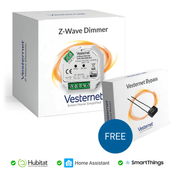
Vesternet own-brand devices have their own Edge drivers, which we recommend for full features. They are in the Vesternet Edge Channel. Enrol your hub and install the drivers for your devices before you pair them.
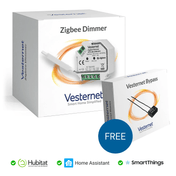
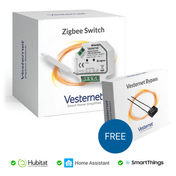
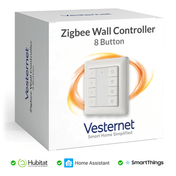
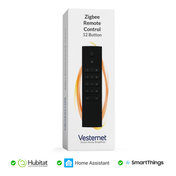
- Zigbee versions work with both hubs.
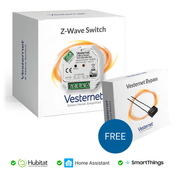
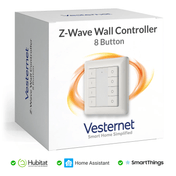
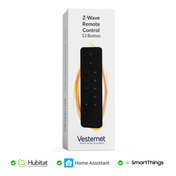
- Z-Wave versions need the earlier Smart Home Hub.
- In-wall modules (switches, dimmers, motor controllers) appear as devices you can control from the app and from Routines. Settings such as the type of wall switch attached are in the device's Settings.
- Wall controllers and remotes have nothing to switch directly. Each button sends pushed, held and released events that you use to start Routines.
Each device has its own page with pairing steps and settings: Vesternet device support for SmartThings.
In-wall modules connect to mains wiring. That work must be done by a competent person and must comply with local regulations.
Routines: your first automation
SmartThings calls every kind of automation a Routine. A Routine has two parts: If (what starts it) and Then (what happens).
- Open the Routines tab and tap +.
- Under If, tap + and choose the device status of your motion sensor: motion detected.
- Add a second condition for the time of day, and choose "All conditions".
- Under Then, choose to control a device, pick the hall light and set it to turn on.
- Tap Save, then give the Routine a name and an icon.
Add a second Routine to turn the light off when motion stops.
A Routine can also be started by hand, like a scene. Choose "Manually run" under If, then add the actions. It appears as a button you can tap in the app or start by voice.
Troubleshooting
- The hub's Wi-Fi network list is empty. Check the SmartThings app is allowed to see nearby devices and, on an iPhone, the local network. Or use an Ethernet cable.
- The hub shows a red light. It has lost its connection. Check your internet and cables, then unplug the hub and plug it back in.
- A Z-Wave device won't pair. First check you have the earlier Smart Home Hub. Then run a Z-Wave exclusion and try again close to the hub.
- A Zigbee device won't pair. Reset the device and try again nearer the hub. Check it is the Zigbee version of the product.
- A device paired but features are missing. It may have a generic driver. Install the manufacturer's Edge driver from its channel, remove the device and add it again.
- A sensor drops off. It is too far from a mains-powered device. Add a plug or range extender between it and the hub. See Building a reliable network.
- Not sure a device is supported? See Will it work with my system?
For more on pairing, see Adding and removing devices. Replacing an older SmartThings hub? See Upgrading or moving to a new hub.
Devices that work with SmartThings
 Motion sensorsFor lighting and security
 Door and window sensorsKnow what is open
 Leak sensorsEarly warning under sinks and appliances
 Buttons and remotesStart a Routine with one press
 In-wall dimmersFit behind your existing switch
 Range extendersCarry the signal to far rooms